Manage setpoint schedules
Use Setpoint schedules to inspect, compare and submit time-bound inverter-curtailment and battery-control commands. This section is available when enabled for your account. Select the correct installation first, then open Setpoint schedules.
The examples use Noorderlicht Distributiecentrum — Zwolle, with the labels optimizer, manual and solar. Powers and times are example values, not recommended settings for your installation. Before submitting, check that the commands suit the connected equipment and the agreed control configuration.
Schedules, labels and records
A setpoint contains a start time, duration, command and power value. A schedule contains a collection of setpoints. A label identifies an independent schedule stream within one installation. Each submitted version is stored as a record with receipt and evaluation details.
For example, use optimizer for an automatic plan, manual for separate manual commands and solar for inverter curtailment. These names do not assign priority: manual is not an automatic priority label.
A new schedule under an existing label replaces the entire previous schedule for that label, including commands already in progress. It does not append individual rows. Other labels remain in place. Include every command you want to retain in the new version.
A label starts with a lowercase letter and then contains only lowercase letters, digits and hyphens. Its length is 1–64 characters. manual, solar and battery-plan are valid; Manual, battery_plan and names with spaces are not. Enter the label separately: it is not part of the schedule JSON.
Times and units
All times on this page, in the editor and in historical time selection are UTC. On 15 September 2026, 10:30 UTC is 12:30 in the Netherlands. Your browser's local time zone does not change the schedule display. Always check the daylight-saving conversion for the date of your command.
Enter power in watts, not kilowatts or kilowatt-hours: 25000 means 25 kW. Kilowatt-hours measure energy and do not belong in a power field. Use a non-negative integer watt value in JSON; the table editor requires power greater than zero.
Read the overview
The top section shows Status on EnviBase, the planned-schedule count and historical time selection. Below it are the combined schedule, active schedules per label and the Schedules record table.
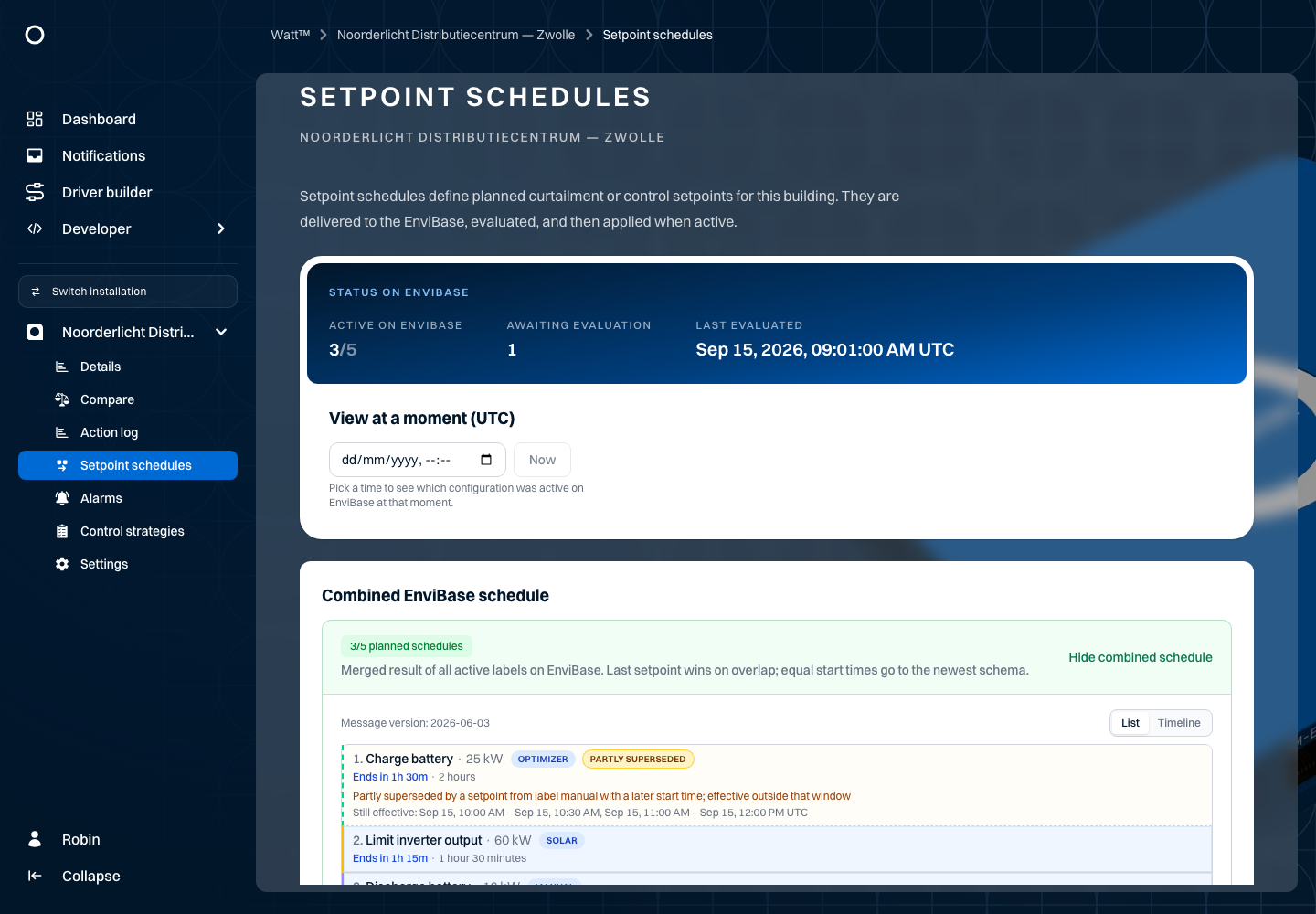
Received is not the same as evaluated
Received is when SetpointService stored the version. Evaluated is the reported time when EnviBase processed it. A new version can already be received while the previous evaluated version is still shown in the combined overview.
| Status | Meaning | What to check |
|---|---|---|
| Pending | The latest received version for the label has no evaluation time yet. | Compare it with the previous evaluated schedule. |
| Scheduled | The selected evaluated schedule starts after the displayed reference time. | Check its start time and UTC. |
| Active | The displayed reference time falls within the selected evaluated schedule's window. | Check individual commands, gaps and overlap. |
| Completed | That schedule's window has ended, or the evaluated schedule is empty. | Review history and measurements for the result. |
| Historical | This is no longer the selected evaluated or pending version. | Use it as a historical reference, not the current plan. |
The schedule window runs from the earliest start to the latest start plus duration. It can contain gaps without commands. Active therefore does not mean a setpoint runs throughout the entire window. Completed does not prove that every command was executed.
The delay column shows the time between receipt and evaluation. For a pending version, it shows how long evaluation has been outstanding. An older, unevaluated version may already have been overtaken by a newer submission.
Check each label
Expand a label's configuration. Review its previous evaluated version and, where present, its new pending version. Use start/end times and individual setpoints to determine whether a command applies at the selected time.
In the example, manual was received at 08:00 UTC and evaluated at 08:01 UTC. A modified version was received at 10:25 UTC but has not been evaluated yet. The combined overview therefore still uses the battery command from the 08:00 UTC version.
Understand overlapping schedules
Expand the combined schedule. Choose Timeline to inspect windows per label, or List for individual commands, their sources and overrule information. The list offers 10, 25 or 50 setpoints per page.
Watt combines relevant evaluated versions. Pending submissions do not participate yet. A completed label can remain visible when it overlaps the window of still-active or upcoming schedules.
Priority during overlap
The overrule display uses two command families:
- Battery: charging and discharging compete, including commands from different labels.
- Inverter curtailment: two curtailment commands compete. Curtailment and battery commands do not overrule each other.
Within the same family, the command with the later start time takes precedence during overlap. For the same start time, the command from the more recently received schedule takes precedence. Label names, power values and JSON row order do not assign priority.
Overruling applies only during the overlapping window. A longer command can remain effective before and after it. Commands that meet at a boundary without sharing a time window do not overlap. Avoid competing commands with both the same start time and the same receipt time: the two priority rules do not resolve that tie.
Noorderlicht example: three labels
All times below are UTC on 15 September 2026. The evaluated versions were received at 07:00 (optimizer), 08:00 (manual) and 09:00 (solar).
| Label | Window | Command |
|---|---|---|
optimizer | 10:00–12:00 | Charge batteries at 25,000 W. |
manual | 10:30–11:00 | Discharge batteries at 12,000 W. |
solar | 10:15–11:45 | Limit combined inverter output to 60,000 W. |
optimizer | 12:00–13:00 | Discharge batteries at 18,000 W. |
manual | 12:00–13:00 | Charge batteries at 10,000 W. |
The combined overrule display gives these battery windows:
| Window | Battery command taking precedence | Reason |
|---|---|---|
| 10:00–10:30 | optimizer: charge, 25,000 W | No competing command yet. |
| 10:30–11:00 | manual: discharge, 12,000 W | Later start than the charging command. |
| 11:00–12:00 | optimizer: charge, 25,000 W | The shorter discharging command has ended. |
| 12:00–13:00 | manual: charge, 10,000 W | Same start; the manual version was received later. |
The solar curtailment remains separately visible because it belongs to another family. The optimizer charging command at 10:00 is Partly superseded; its discharging command at 12:00 is fully Superseded. For partial overruling, also review the Still effective windows.
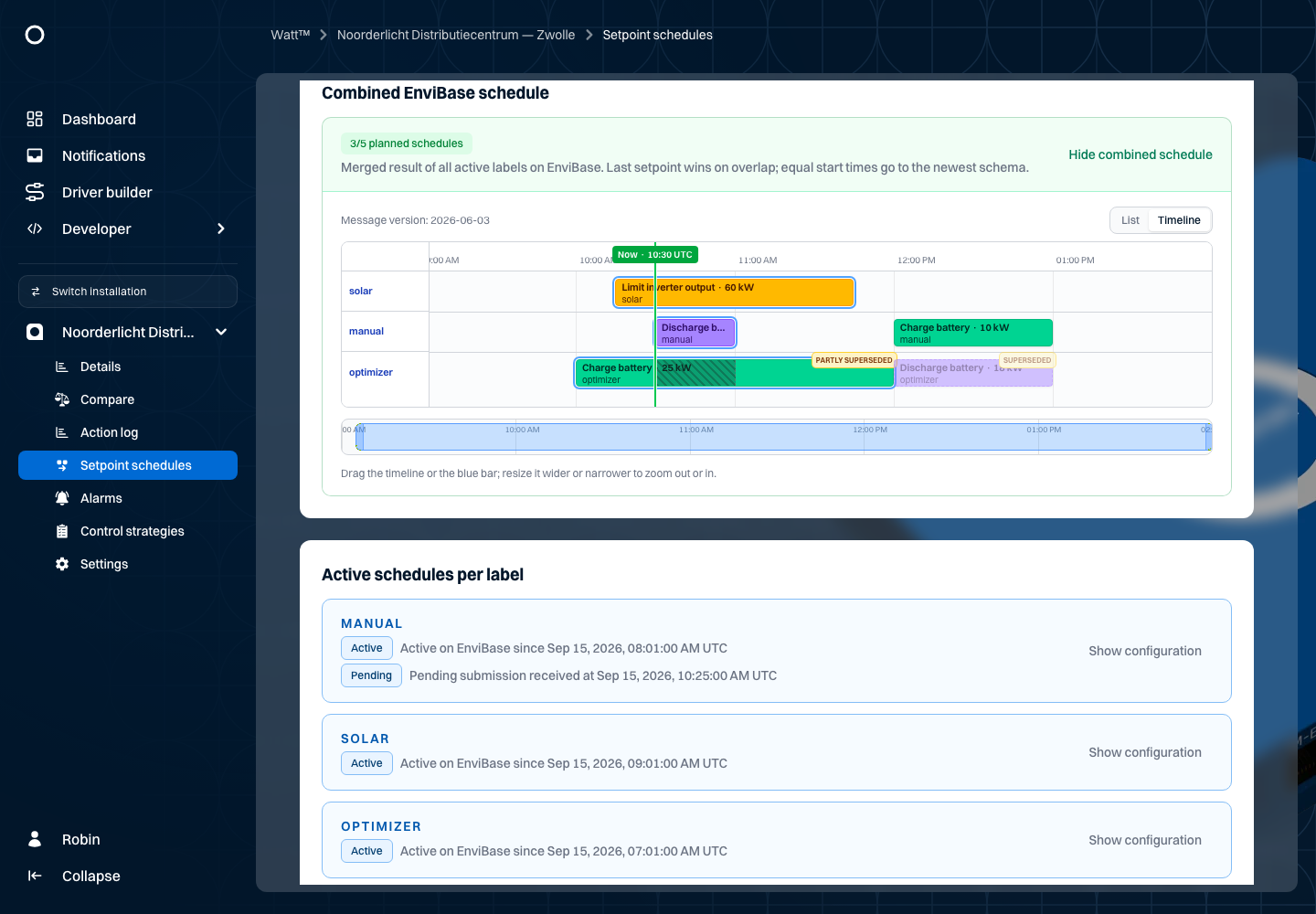
Drag the timeline or its blue navigation bar to inspect another window. Widen or narrow the bar to adjust zoom. The Now marker follows the current time or your selected historical time.
This display explains scheduled commands, not measured battery or inverter power. Check physical results separately in Details and, where available, action history.
Inspect and compare configurations
- Find the record in Schedules. Newest receipts appear first; the table shows ten records per page.
- Open its configuration.
- Use the readable summary for type, start, duration and target power. Switch to JSON for the exact received content.
- Check the label and receipt time: the same label can have several versions.
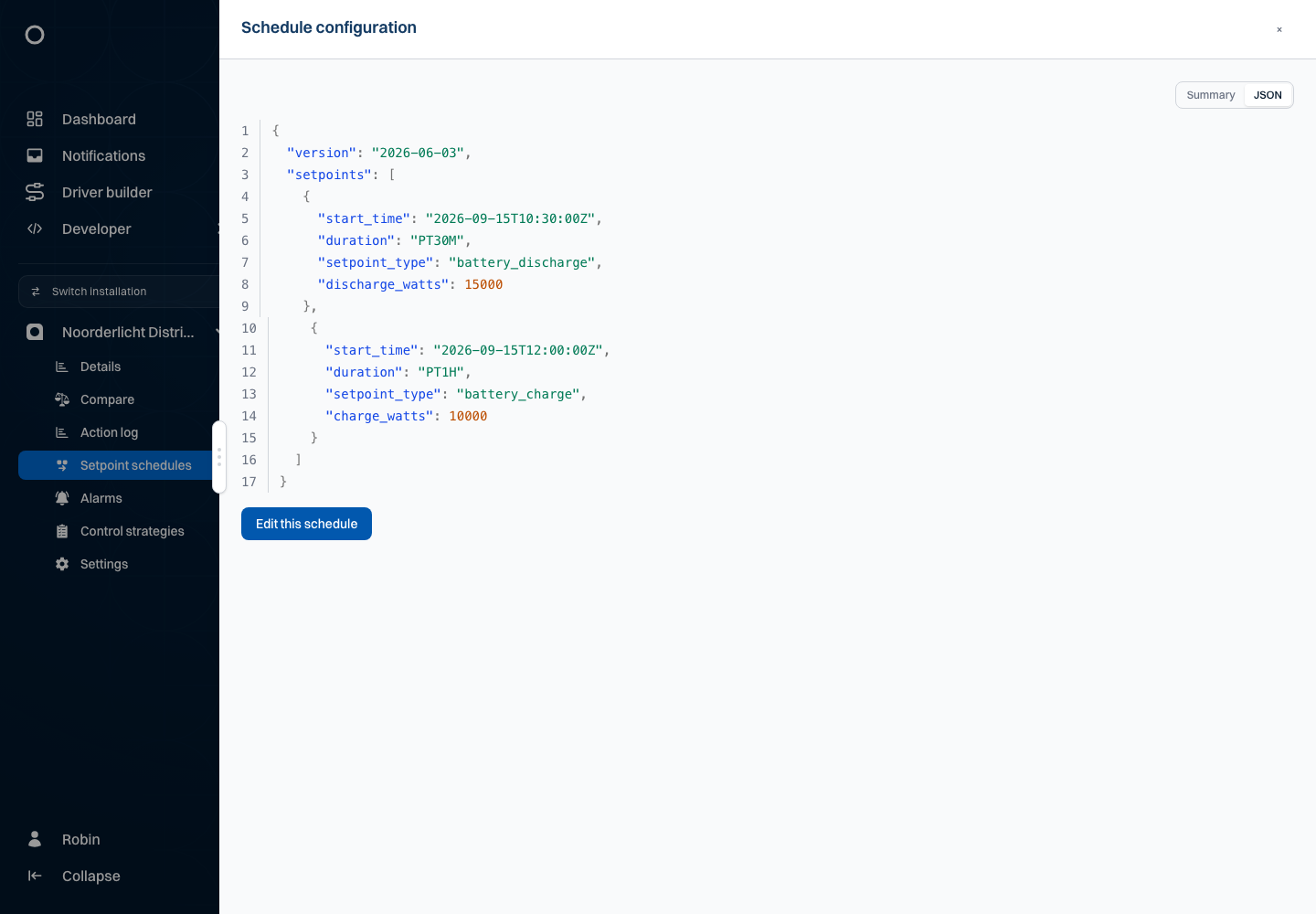
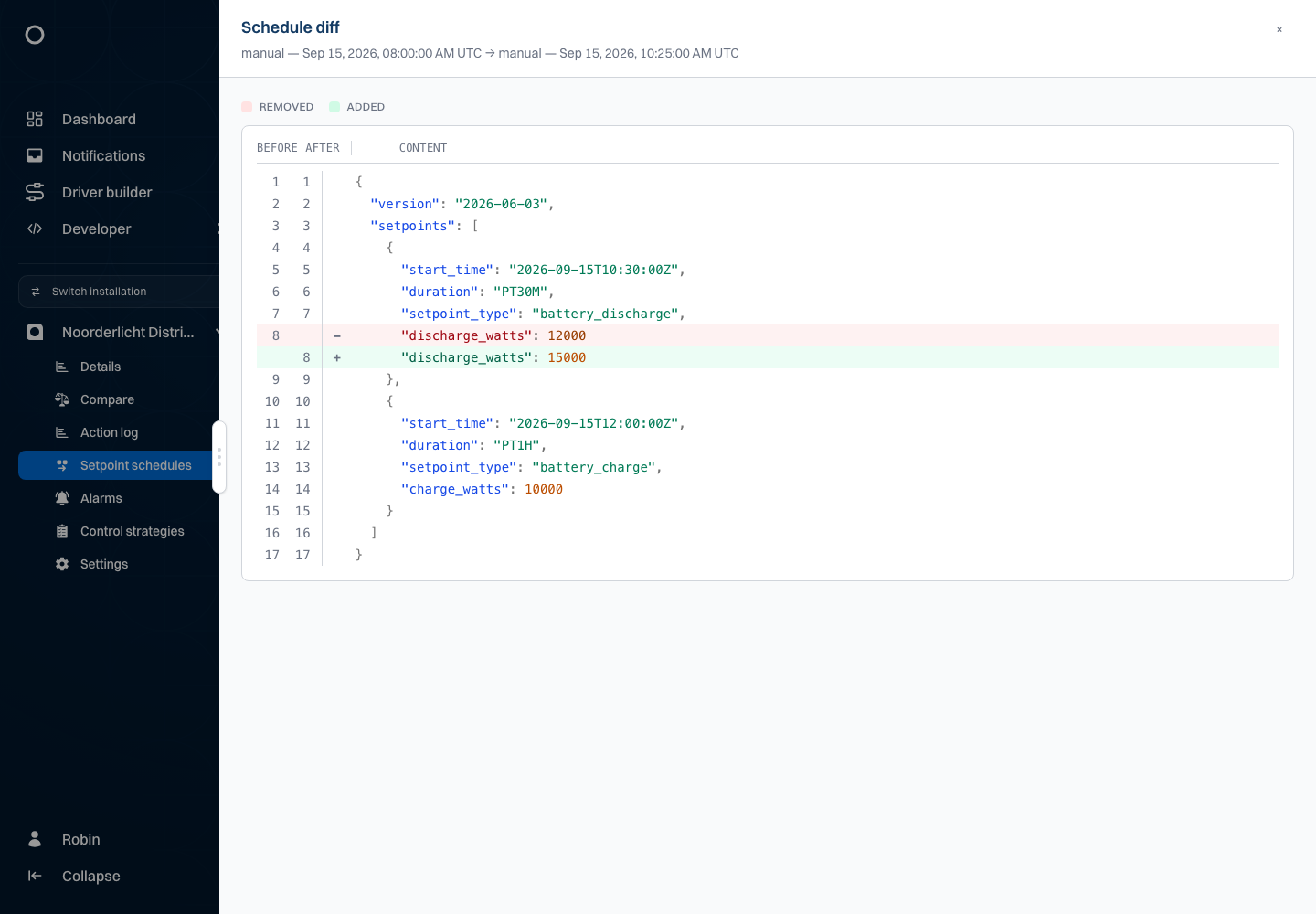
Select exactly two records on the same table page and compare the selection. The comparison places the older receipt on the left and the newer one on the right, highlighting added and removed lines. Use the label-specific active-versus-pending comparison to open those two versions directly.
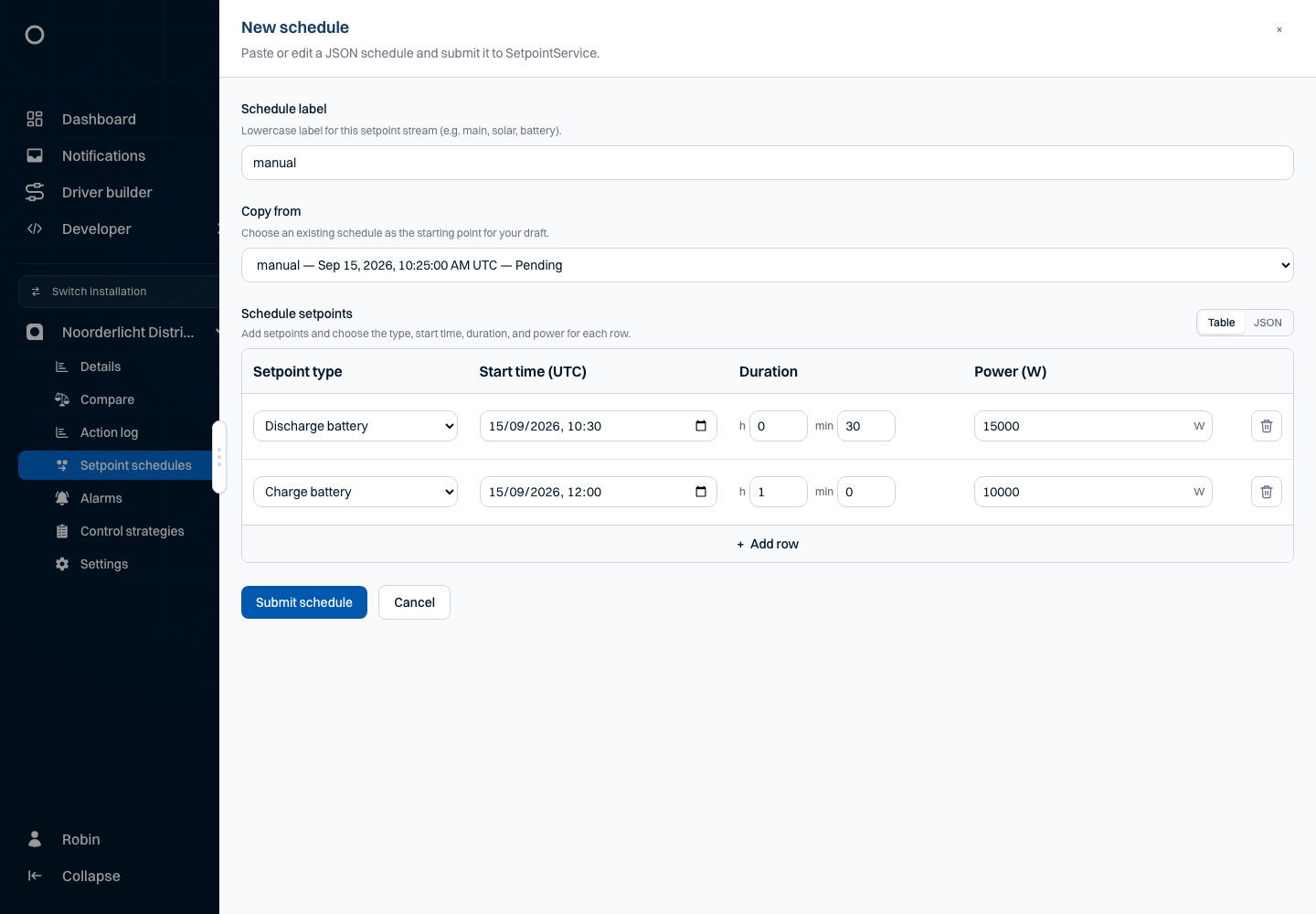
In the example, discharge power changes from 12000 to 15000 W. The comparison shows the content change; the selected version in the combined overview changes only after evaluation.
An unknown message version or unreadable format cannot produce a summary. Inspect the raw JSON instead. A missing summary does not mean the content is empty.
Investigate an earlier moment
Choose a date and time under View at a moment (UTC). Watt selects a record per label that was already evaluated at that time and also shows submissions then received but still pending. Historical selection uses evaluation time first, then receipt time when evaluation times are equal.
Use this to investigate which schedule was visible before a changed version was evaluated. You are viewing history, not restoring or restarting a schedule. Use Now to return to the current view. A future time is clamped to the present, not executed as a future simulation.
If History may be incomplete appears, older records have not been loaded for one or more labels at the selected moment. Do not conclude that no schedule existed then. Inspect record history and choose a more recent moment if necessary.
Create a schedule in the table editor
Before creating a schedule, return to the current view if you were inspecting history.
- Return to Now and verify the installation.
- Open New schedule and enter the schedule label.
- Choose an existing version as the copy source, or a blank plan. Always inspect copied rows: an empty plan clears the label's schedule.
- Choose Table and add a row for every command.
- Enter the setpoint type, Start time (UTC), duration in hours/minutes and power in W for each row.
- Remove only commands you do not want in the new version.
- Review the complete plan and submit the schedule.
- Check the new receipt in the table, then its evaluation time and the combined overview.
The table editor requires a valid start time, a positive duration of at least one minute and power greater than zero. Default row values are not installation advice. You can also open a record and choose to edit that schedule: this creates a new draft and does not modify the historical record.
JSON format and all supported commands
Choose JSON in New schedule to edit the message content. Formatting JSON makes valid JSON readable; it does not check whether a command suits your installation. Use message version 2026-06-03 and at most 1,000 setpoints per schedule.
| Field | Value |
|---|---|
version | Exactly "2026-06-03". This is the format version, not the plan date. |
setpoints | An array of commands; an empty array clears the selected label's plan. |
start_time | ISO 8601 timestamp with a time zone; use UTC with Z, such as 2026-09-15T10:00:00Z. |
duration | ISO 8601 duration, such as PT30M, PT1H or PT2H30M. Use a positive duration. |
setpoint_type | One of the three types below. |
| Corresponding power field | A non-negative integer in W. Include only the field belonging to the selected type. |
setpoint_type | Power field | Meaning |
|---|---|---|
curtailment_watts | limit_watts | Maximum combined inverter output for the installation. Not a percentage or a separate limit per inverter. |
battery_charge | charge_watts | Desired combined charging power of the batteries. |
battery_discharge | discharge_watts | Desired combined discharging power of the batteries. |
A charge/discharge request above the available battery power cannot provide additional power: the battery can only supply its available capacity. An accepted schedule does not guarantee full execution of every command.
This complete Noorderlicht example contains charging, discharging and curtailment. It is a separate plan demonstrating all three types, not a fourth label alongside the earlier configuration:
{
    "version": "2026-06-03",
    "setpoints": [
        {
            "setpoint_type": "battery_charge",
            "start_time": "2026-09-15T10:00:00Z",
            "duration": "PT2H",
            "charge_watts": 25000
        },
        {
            "setpoint_type": "battery_discharge",
            "start_time": "2026-09-15T12:00:00Z",
            "duration": "PT1H",
            "discharge_watts": 18000
        },
        {
            "setpoint_type": "curtailment_watts",
            "start_time": "2026-09-15T10:15:00Z",
            "duration": "PT1H30M",
            "limit_watts": 60000
        }
    ]
}
Do not add extra fields, comments or trailing commas. For example, charge_watts does not belong to battery_discharge. The backend format accepts zero watts; the table editor does not. Use JSON for a zero value and remain in that mode when submitting.
Also remain in JSON for seconds or other durations that the hours/minutes editor cannot represent exactly. Check the message after switching editor views: the table is not a lossless editor for every ISO 8601 duration variant.
Retrieve and submit data through SetpointService
For your own integration, SetpointService uses the same versioned JSON as the editor. The installation and label belong in the API path, not the message body. The API requires a building-scoped token with scope building-setpoint-service; the installation UUID in the path must match that token. Watt manages its own access: do not put Watt session tokens in your browser code or schedule JSON.
These paths are relative to your environment's SetpointService address:
| Method and path | Purpose |
|---|---|
GET /api/v1/{building_uuid}/setpoint/schedule-labels/ | Latest receipt and its evaluation status per label. |
GET /api/v1/{building_uuid}/setpoint/schedules/ | Received records across labels, newest receipt first. |
GET /api/v1/{building_uuid}/setpoint/schedules/{label}/ | Records for one label. |
GET /api/v1/{building_uuid}/setpoint/schedules/{label}/{received_datetime}/ | Exact received JSON for one version. Use its receipt timestamp from the record. |
POST /api/v1/{building_uuid}/setpoint/schedules/{label}/ | Submit a complete plan or clear it with empty setpoints. |
Record lists support label on the all-labels list, received_after/received_before, evaluated_after/evaluated_before, schedule_start_after/schedule_start_before and schedule_end_after/schedule_end_before. Time bounds are inclusive and expect ISO 8601 timestamps. An evaluation filter excludes records without an evaluation time. Start/end filters select the overall schedule window, not each individual command inside it.
Lists support page from 1 and page_size from 1–100, defaulting to ten results. The response contains count, next, previous and results. Follow pagination: retrieving only the first page does not give complete history.
Submission returns a record, not proof of execution:
| Record field | Meaning |
|---|---|
building_uuid, label | Installation and schedule stream. |
received_datetime | UTC receipt time with milliseconds; use the exact returned value to retrieve that version. |
evaluated_datetime | Reported evaluation time, or null while unknown. |
schedule_start_datetime, schedule_end_datetime | Earliest start and latest end; both are null for an empty plan. |
file_url | Detail address for retrieving the received message; access checks also apply here. |
Store the returned receipt time and check the record later for evaluation. The label summary describes the latest received version: a null evaluation time does not mean no older evaluated version exists. Retrieve that label's records to distinguish them.
Replace or clear an existing plan
To replace a plan, copy the correct version, retain the intended label and include every command that should remain. Check other labels too: replacing optimizer does not disable manual or solar. Restoring an older version means submitting its content as a new schedule, not activating the historical record.
To clear only the manual plan, open New schedule, enter manual and submit:
{
    "version": "2026-06-03",
    "setpoints": []
}
In Table, remove every row to produce the same result. Deliberately review the empty-plan warning. After submission, wait for evaluation and check that this label's commands no longer appear in the combined schedule. Historical records remain available. Clearing is not a general emergency stop; other labels and other control remain in place.
Limits and identical submissions
An installation may have at most five labels with planslanLokaal (bedrijfs)netwerk binnen een gebouw of terrein. extending beyond a new schedule's start. The check uses the newest received version for each other label; the label being replaced is excluded. This is not a limit of five historical records or five commands.
The overview count follows still-running evaluated planslanLokaal (bedrijfs)netwerk binnen een gebouw of terrein. at the displayed reference time. The backend also checks newly received, still-pending versions when you submit. A submission can therefore be rejected while the visible count is lower. Check pending schedules too. Update an existing label, clear an unneeded plan or start the new plan after the existing planslanLokaal (bedrijfs)netwerk binnen een gebouw of terrein. end.
Resubmitting content identical to the last received plan for the same label returns the existing record without a new receipt or evaluation request. Merely reordering commands does not create a new version either. Do not expect an extra table row after every click.
Troubleshoot systematically
| Problem | Check and next step |
|---|---|
| Schedule remains pending | Check whether it is the latest receipt for the label, refresh and inspect evaluation time. Repeated identical submissions do not create a new version. |
| Command missing from the combined schedule | Check label, evaluation, start/end and historical reference time. Open the configuration; look for load errors or unknown format versions. |
| Command partially or fully overruled | Compare the same command family, start times and receipt times. Inspect effective windows; changing the label alone does not assign priority. |
| Wrong time | Check UTC and the daylight-saving conversion for the plan date. Do not enter local clock time directly in a UTC field. |
| Row rejected | Check start time, positive duration and power greater than zero. Use JSON if you deliberately need zero watts. |
| Server rejects JSON | Expand the server response. Check version, field names, type, non-negative integer watts and the 1,000-command limit. HTTP 422 indicates invalid input. |
| Limit warning or HTTP 409 | Review still-running planslanLokaal (bedrijfs)netwerk binnen een gebouw of terrein. and pending versions per label. Read the response: 409 can also mean a receipt-timestamp conflict. |
| Storage or delivery error | Refresh and check whether a record was already received before submitting again. Delivery can fail after storage; receipt is not evaluation. |
| Overview does not update automatically | Close detail, comparison and submission panels, return to Now and make the tab visible. Use the refresh control by Live. |
| Evaluated, but different measured power | Check overlap, time, available power and measurements. Evaluation does not prove full physical execution. |
Live updates pause in historical view, while a panel is open or when the tab is hidden. For the final check, use the current view and verify receipt, evaluation and relevant measurements separately.