Review and adjust control strategies
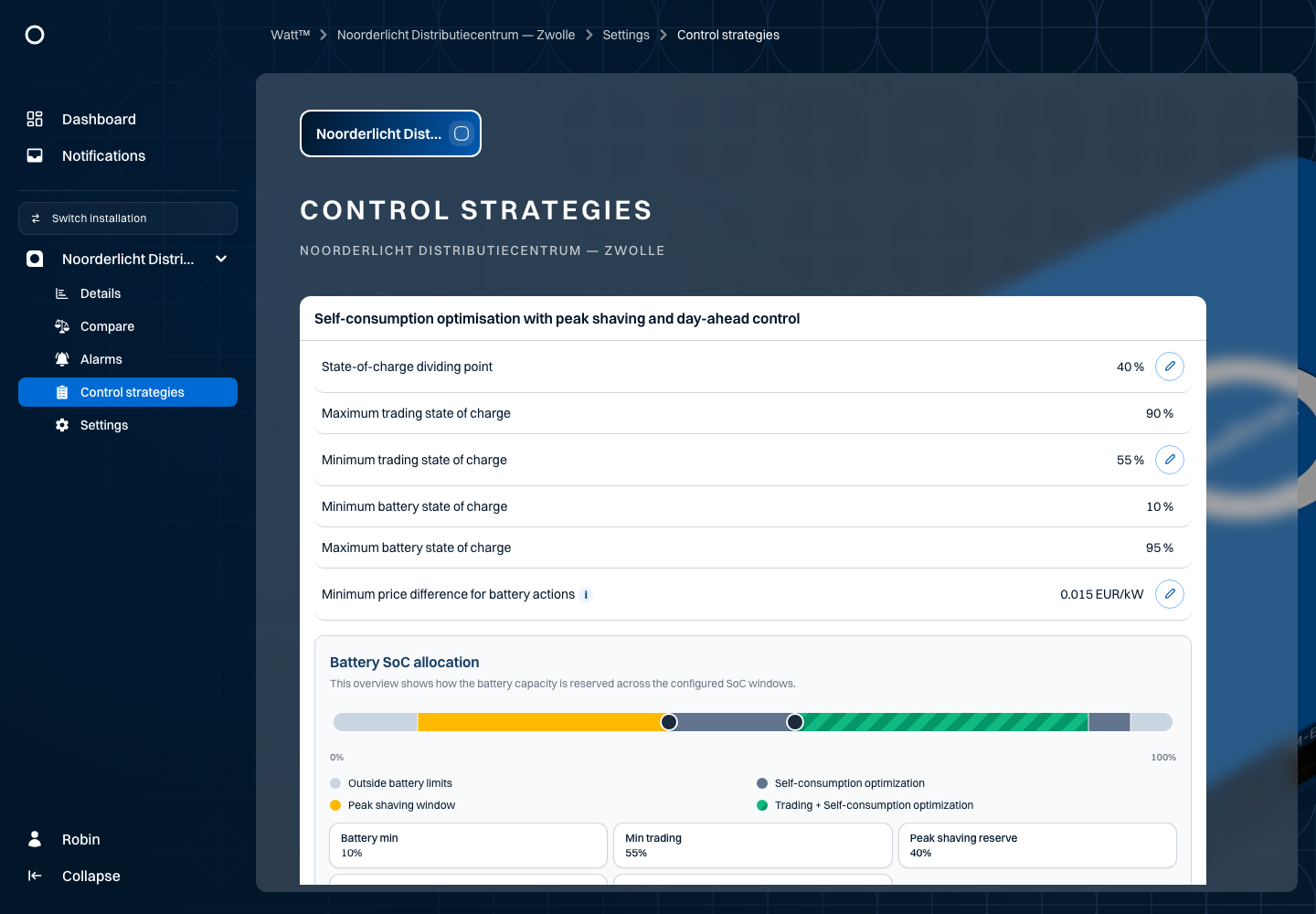
Use Control strategies to review the available controls and settings for your installation. The battery example uses Noorderlicht Distributiecentrum — Zwolle.
Open Control strategies for the installation. The overview shows existing strategies and parameters. Check each description, current value and unit. Only parameters with an available edit control can be changed through this screen.
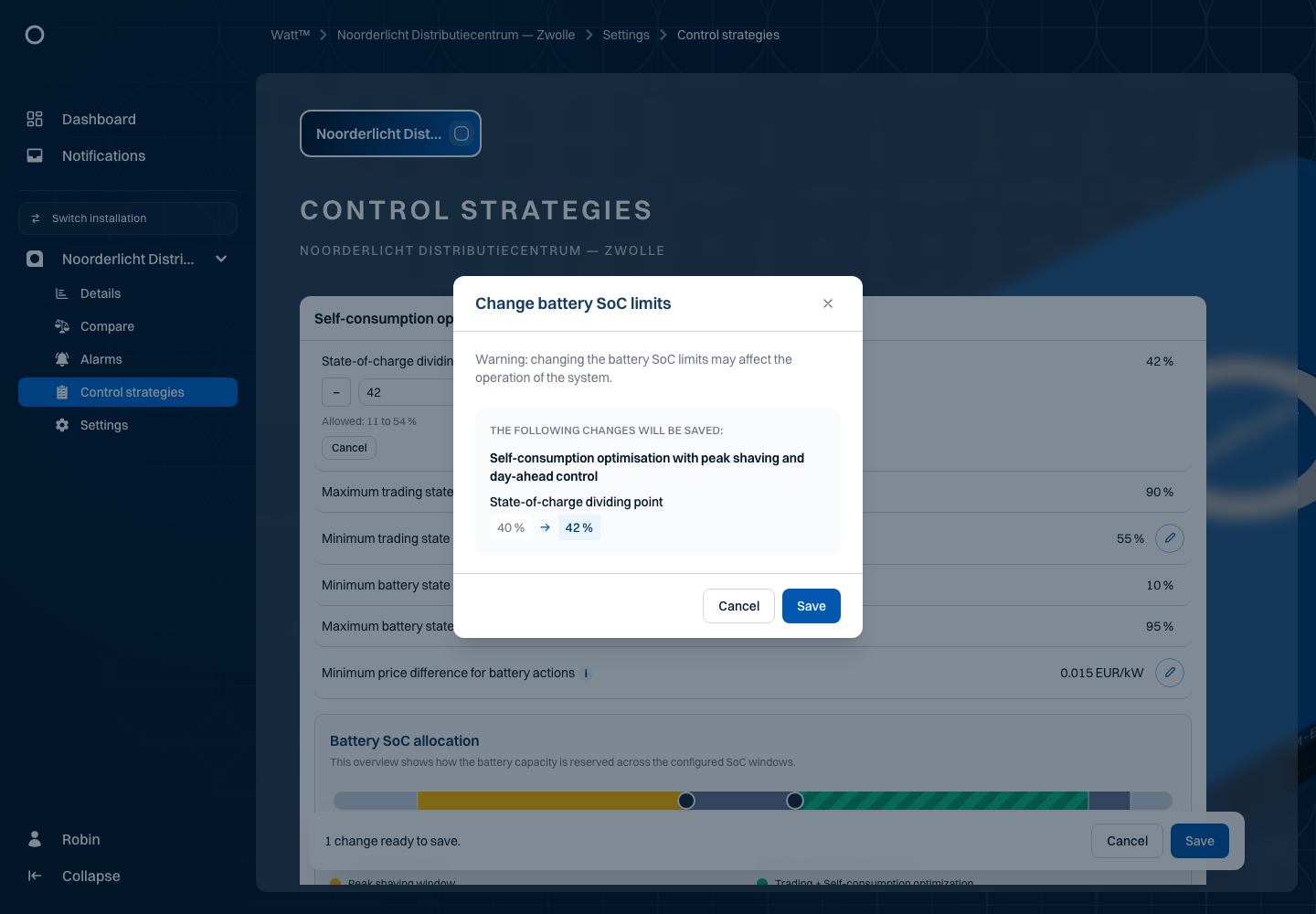
For an editable parameter, open the edit control, enter a value within the displayed limits and review the change summary. Confirm the change and check the result. Discard changes you do not want to apply. A cooldown or dependencies between parameters may limit further changes.
A displayed parameter is not advice to change a strategy. Coordinate changes with the person responsible for your installation. A saved setting is also not proof that a physical device has already executed an action.
Why do installations show different strategies?
The overview reflects the installation's configured controllers. It is not a menu for adding a strategy yourself. Another location may have different cards, parameters or no strategies. Several cards can appear together, such as grid monitoring, a battery strategy and curtailment. Check the installation name at the top first.
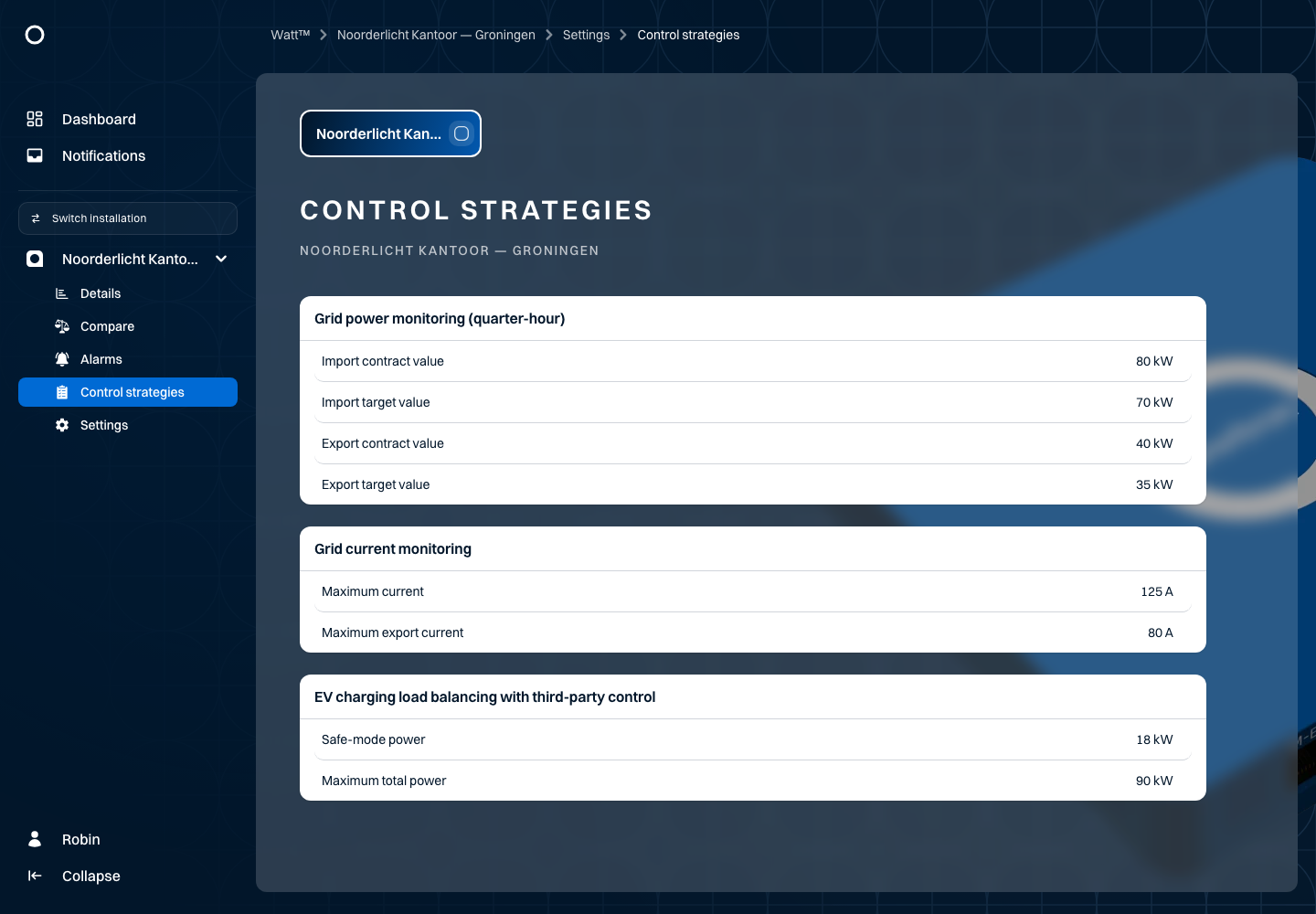
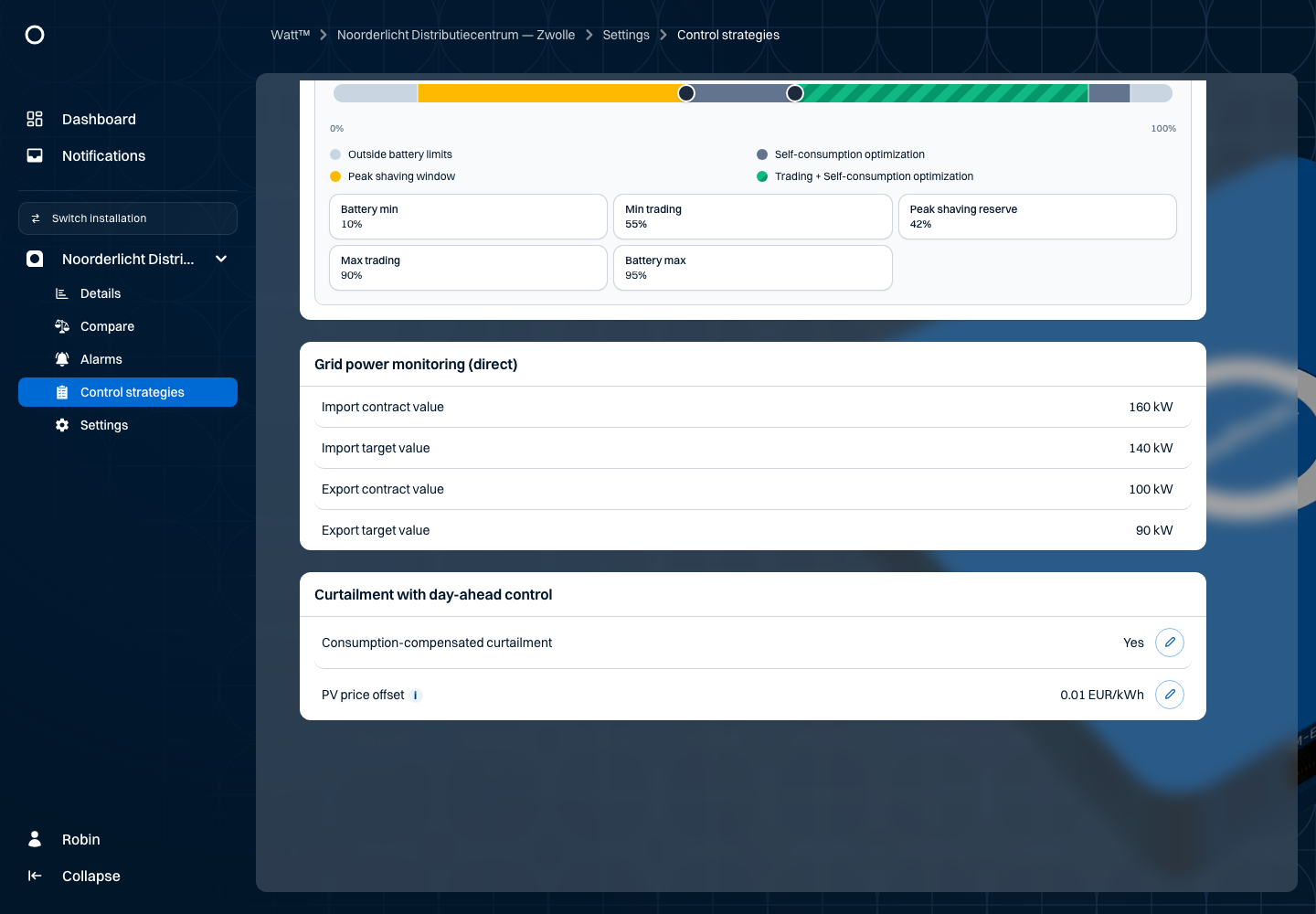
In this example, Zwolle has the combined battery strategy, direct power monitoring and curtailment. The Groningen office has quarter-hour power monitoring, current monitoring and EV charging load balancing. These are fictional settings for existing controller types, not prescriptions for your installation.
A name may include day-ahead control or third-party control. This reflects the price/external-control configuration, not a button for switching control modes. Different technical variants can share the same short display name. Some names supplied by the backend may remain Dutch even when the interface is English.
Recognise the strategy families
| Strategy or variant | What to review | Parameters that may appear |
|---|---|---|
| Direct grid power monitoring | Configured import/export limits and targets. | Import contract/target and export contract/target, in kW. |
| Quarter-hour grid power monitoring | The quarter-hour-based monitoring configuration. | The same contract and target values, in kW. |
| Grid current monitoring | Connection current limits. | Maximum current and maximum export current, in A. |
| Self-consumption optimisation | Battery limits for self-consumption; a trading variant also exists. | Maximum charge/discharge current and minimum/maximum battery SoC. |
| Peak shaving | Battery configuration for limiting peaks; a trading variant also exists. | Current/SoC limits or a dividing point and trading-SoC limits, depending on the variant. |
| Peak shaving with self-consumption optimisation | The combination of self-consumption and reserved capacity. | Dividing point, maximum charge/discharge current and minimum/maximum battery SoC. |
| Self-consumption optimisation with peak shaving | Zwolle's combined battery strategy. | Dividing point, minimum/maximum trading SoC and minimum/maximum battery SoC. |
| EV charging load balancing | Limits on total charging power. | Safe-mode power and maximum total power, in kW. |
| Peak shaving with a generator | Generator configuration. Dynamic, static and dry-contact variants share this name. | Enable/disable SoC, battery charging power target, warm-up time, minimum on-time and cool-down time. |
| Curtailment / production control | Configuration for limiting generation. | Consumption-compensated curtailment and, with price control, PV price offset. |
| Storage control | Battery limits for external storage control. | Maximum charge/discharge current and minimum/maximum battery SoC. |
| Production stop on standby-generator activation | Presence of this controller. | It may appear without parameters in this overview. |
A contract value and a target value are different settings. A target describes the control objective; it does not change your grid contract. Zwolle's example has an import contract of 160 kW, import target of 140 kW, export contract of 100 kW and export target of 90 kW. Visible values are not automatically editable.
Groningen's quarter-hour example uses 80/70 kW for import and 40/35 kW for export. Current monitoring shows 125 A import and 80 A export. Do not confuse amperes with kilowatts. EV charging shows safe-mode power of 18 kW and maximum total power of 90 kW; this overview does not provide individual charge-point controls.
Battery SoC and capacity allocation
SoC means state of charge, expressed as a percentage. Battery SoC allocation shows configured windows, not the battery's current charge. Use the installation overview or measurement chart for the actual value. Colours and legends depend on the battery variant.
| Zwolle boundary | Initial value | Meaning in the overview |
|---|---|---|
| Minimum battery SoC | 10% | Lower configured battery boundary. |
| Dividing point / peak-shaving reserve | 40% | Marker between displayed capacity windows. Example change: from 40% to 42%. |
| Minimum trading SoC | 55% | Lower boundary of the trading window. |
| Maximum trading SoC | 90% | Upper boundary of that window. |
| Maximum battery SoC | 95% | Upper configured battery boundary. |
In this example, the dividing point and minimum trading SoC are jointly editable. The dividing point must remain below minimum trading SoC, which must also stay below the explicit trading upper boundary. Allowed limits can therefore change when another marker changes. Follow the field's Allowed text; these example bounds are not universal installation limits.
Where available, you can drag editable markers. This creates a draft change, not an immediate battery instruction. Not every marker is draggable. Controls may be blocked during a cooldown. The backend also checks your permissions when saving, so a visible editing button does not guarantee that your change will be accepted.
Step by step: from 40% to 42%
- Confirm that you are viewing Zwolle and note the original values.
- Choose Edit for the dividing point. Enter
42, or use the available plus/minus controls. - Commit the input, for example with Enter. SoC settings require integers.
- Review the new allocation and the unsaved-change summary.
- Choose Save. Read the old and new values in the confirmation. A grouped SoC change may show both boundaries.
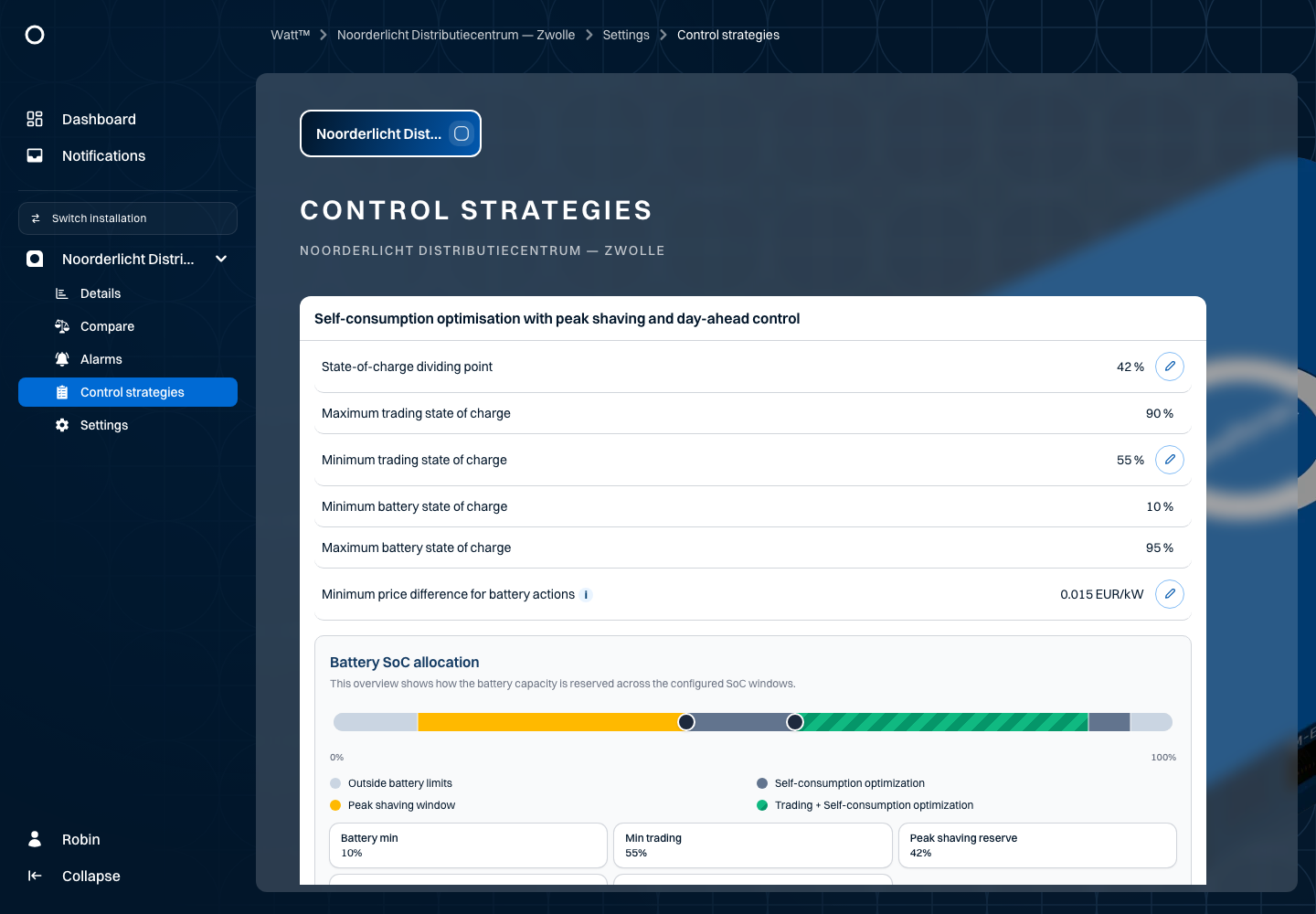
- Confirm only the intended change. Reopen the overview and check
42%and the other limits.
Use the cancel control to discard a draft. Closing the confirmation without confirming has not applied the change. Successful saving does not confirm that a physical charging or discharging action has already occurred.
Price-related parameters
With Self-consumption optimisation with trading, the configured price control may also expose Maximum battery charge power, Maximum battery discharge power and counts of charging/discharging intervals. Power is in kW; interval counts are in hours or quarter-hours according to the installation configuration. Four quarter-hours equal one hour, not four hours. These fields describe existing configuration and have no separate editing controls in this overview. Use them to understand price settings, not as manual charging commands.
Minimum price difference for battery actions appears with the corresponding battery and price-control configuration. The Zwolle example shows 0.015 EUR/kW. Watt uses the backend's unit; do not silently reinterpret it as EUR/kWh. The field supports five decimal places. It is a strategy threshold, not a return forecast or advice on which value to choose.
PV price offset appears for the relevant curtailment configuration. The example is 0.010 EUR/kWh; the field supports three decimal places and no negative offset. The price-based backend task adds this offset to the current price and checks whether the sum is negative. For example, -0.020 EUR/kWh plus 0.010 EUR/kWh yields -0.010 EUR/kWh. This explains the threshold, not a promise that every installation immediately stops production: configuration, available prices and processing still matter.
Consumption-compensated curtailment shows the configured Yes/No state. It is not a numeric percentage. The current numeric parameter editor is not a documented way to change this boolean. Discuss a desired configuration change with the installation administrator.
Read generator and time parameters
Generator variants may show enable/disable SoC and a battery charging power target. Warm-up and cool-down times are in seconds. Minimum on-time may be in minutes, but the backend can display durations shorter than one minute in seconds. Always read the displayed unit rather than the number alone.
Such a card is not a generator start/stop button. A configured strategy does not mean that all hardware settings are editable in Watt. Have the responsible administrator handle changes to generator and connection limits.
Permissions, cooldowns and errors
Watt uses editing metadata to offer editing controls. The backend checks your permissions when saving. A missing pencil does not make the value unimportant. Some backend strategies have no editable parameters or are not yet fully supported by the Watt overview.
Certain changes trigger a backend cooldown. Watt displays Wait …s and may temporarily block further changes in the overview. Wait for the displayed release; reloading or using another browser does not bypass that rule. Different parameter families may have their own cooldowns.
For an input error, check the number, unit, permitted bounds and related values. For a save error, read the message and check reloaded values before retrying. An unsupported-strategies message is different from “no strategies configured”. Record the installation and message for support.
Use Details for measurements and Action history for available logged commands. Strategy cards describe configuration; charts and action history answer different questions.